Tutorial Icons
All the tutorial info you require to start using Icons.

Choose Icon
Select 'Choose Icon' tab.
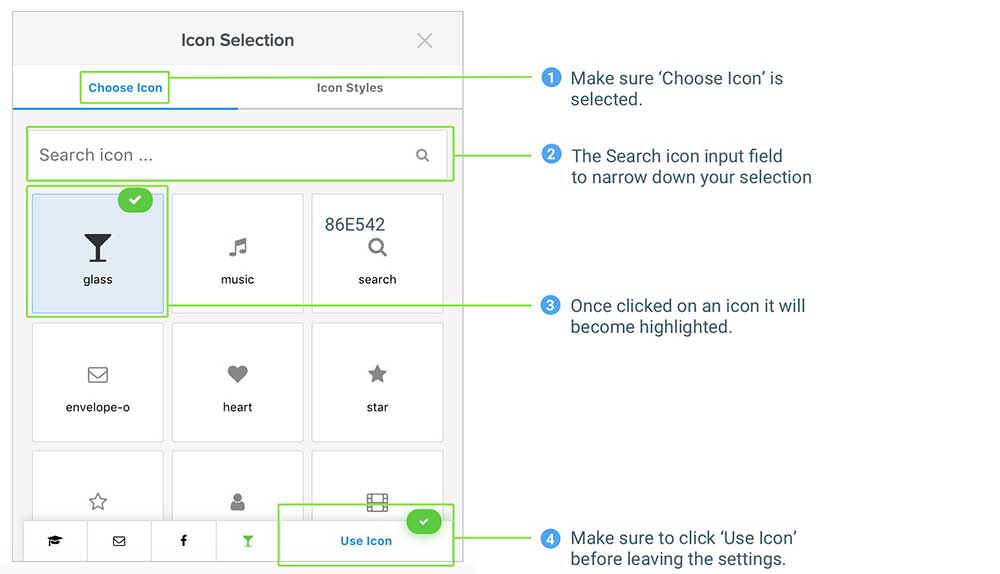
1Make sure the 'Choose Icon' tab is selected when trying to pick your icon.
2You can scroll down the long list of available icons to see which might be of good use to you.
You can also use the 'Search Icon' input field to narrow down the selection.
3 You can click on the icon you want to use, it will become highlighted and have a green check symbol at the top.
4 If you decided on the icon choice, before closing the settings box, do make sure to click on 'Use icon' button at the bottom right.
Style Icon
Icon Styles
In the icon styles, you can set color, icon size and icon size for mobile screens for both normal and hover state.
Box Styles
In box styles you can decide to wether your icon should have a box around it which you can style for both normal and hover state. Set here your box background color, border radius to make it rounder and more.
Link
If you're icon needs to link to some page, you are able to include it in this part of the setting, make sure to toggle on the setting 'Create a link for icon'.
The next box you can include the link it needs to go to and under this is a toggle element whre you can decide wether the link needs to open in a new window/tab.
Additional Text
Your icon can include additional text on either side of the icon (top, right, left, bottom). You can set both font size for desktop and mobile sizes. By default it will inherit the font used on your theme, but if you would like to use the default font from the app, you can check this option, the font used will be Helvetica with a fallback to Arial, both very well known and used sans serif fonts.
Hover Effects
Please note that hover effects will only take effect if the icon/box is using a link.
You can choose from a selection of nice transitions for hover and set the transition duration with the slider on top.
The value from this duration is set in milliseconds and can go from 0 to 5000, or 0 seconds to 5 seconds max.
List of videos
Selecting an icon
In this example, we will show how you can select an icon, by navigating the icons and by using the search field.